Sensory Scribe for Mac
Official Help Guide v1.0
🚀 Quick Start
1. Record Live
Connect a mic, press ⌘ R, and watch text appear in real-time.
2. Annotate
Use ⌘ ⌃ 1-4 to drop colored markers instantly.
3. Review
Click markers to jump to audio; add detail in the Notes panel.
1. Getting Started
Scribe for Mac turns your spoken words into text in real time, entirely on your device. There is no internet connection required and no audio is ever sent to external servers.
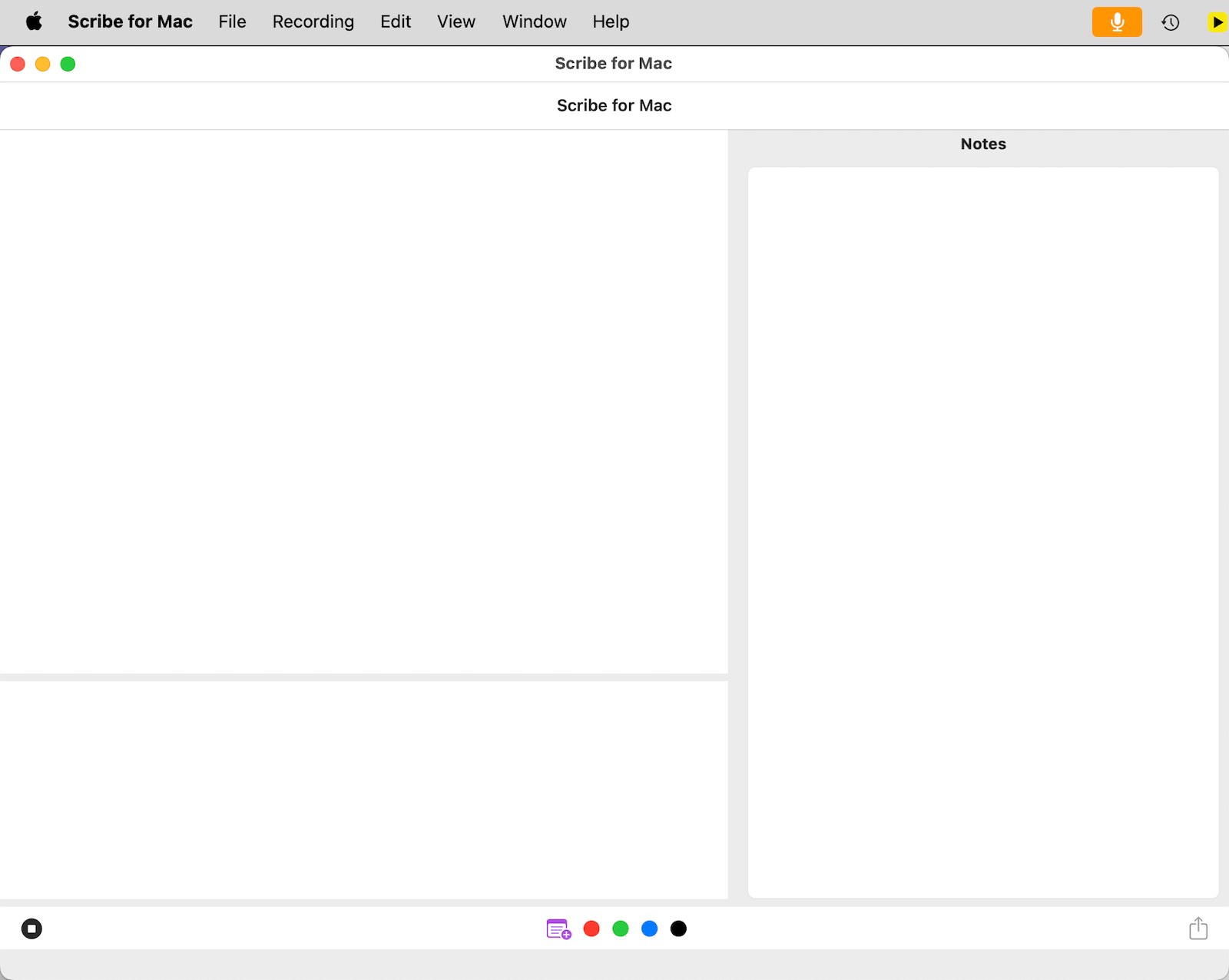
The main interface showing real-time transcription.
Every recording is saved locally to ~/Documents/Scribe Recordings/ as a package containing the audio, transcript, timing data, and markers.
3. Recording Live Events
Use this mode for live meetings or lectures where you are using a microphone to capture audio directly.
For best accuracy, using an external USB or Bluetooth microphone is highly recommended.
Start recording with ⌘ R. Drop markers at key moments using these shortcuts:
- Page Marker: ⌘ ⌃ P
- Red Marker: ⌘ ⌃ 1
- Green Marker: ⌘ ⌃ 2
- Blue Marker: ⌘ ⌃ 3
- Black Marker: ⌘ ⌃ 4
4. Transcribing External Media
You can use Sensory Scribe for Mac to transcribe recordings and videos from other devices or streaming sources.
- Run the audio file in your browser or QuickTime so you can listen to it live.
- Run Scribe and start a recording with ⌘ R.
- Scribe captures the text while you add markers and notes in the Notes panel.
- End the recording to save the transcript alongside the source audio.
5. Playback & Notes
Play back recordings with synchronised word highlighting and a visual waveform. Clicking any marker jump-links you directly to that moment in the audio.
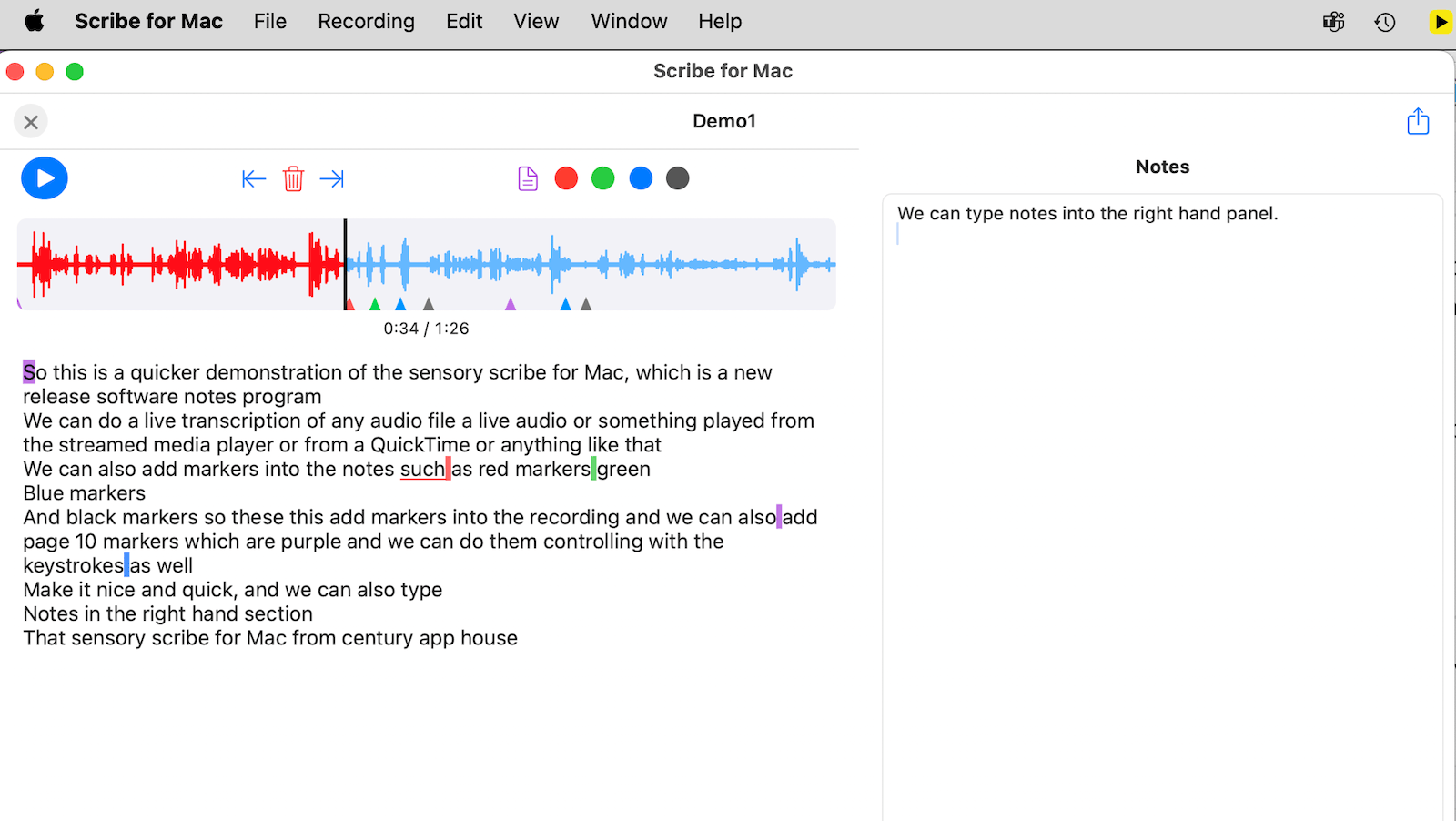
The playback toolbar with Marker Jump navigation buttons.
Use the Marker Jump buttons on the toolbar to skip instantly between your tagged moments.
6. Editing with Writing Tools
Scribe integrates with system-wide Writing Tools to help you refine and polish your transcripts.
- Copy your transcription text and paste it into the internal Notes panel.
- Select the text you wish to refine and right-click to access Writing Tools.
- Use Proofread to identify and correct transcription mis-recognitions.
- Listen back to your edited text within the panel to verify it matches the recording.
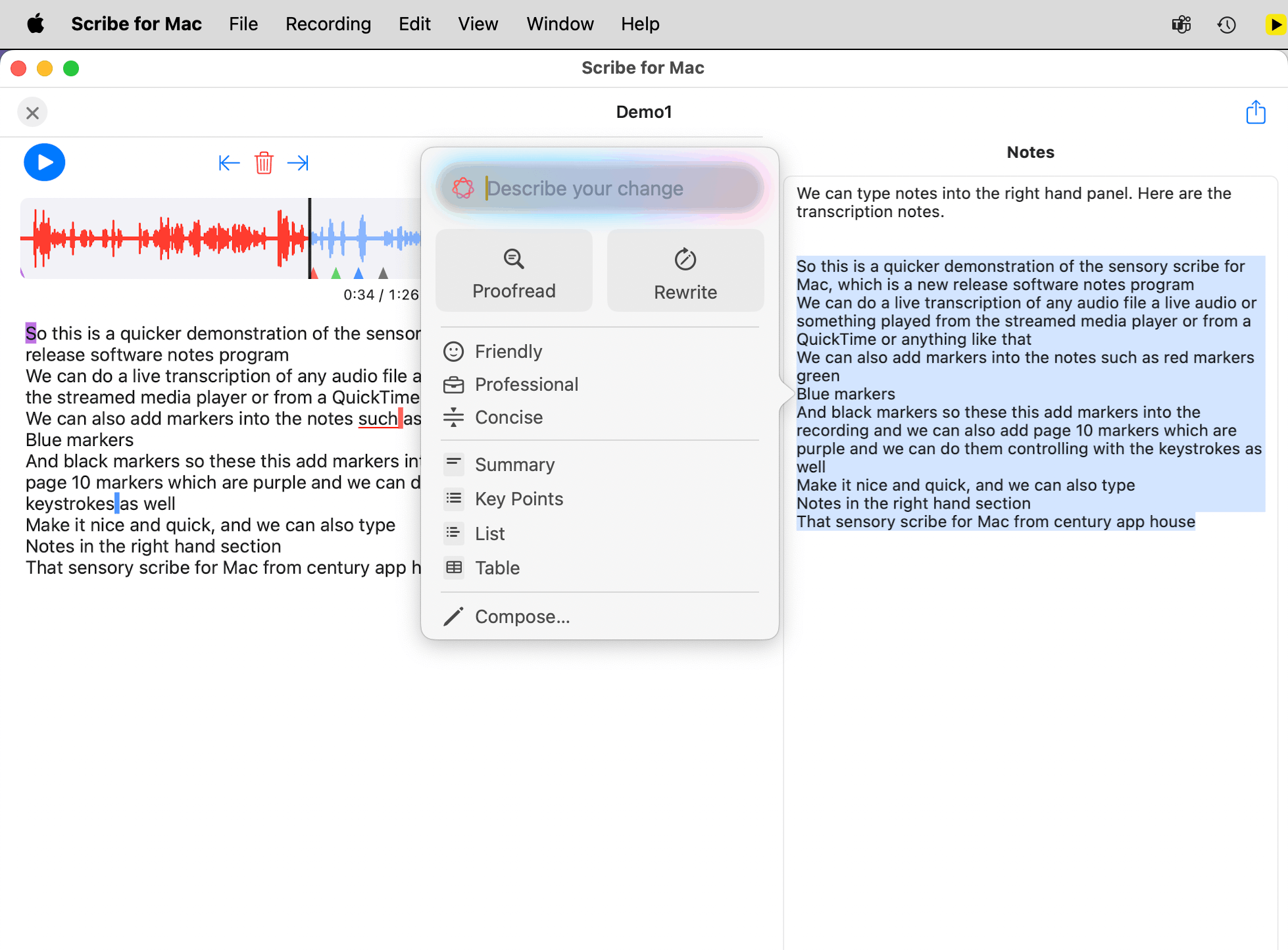
Accessing Writing Tools within the Scribe Notes panel.
7. Managing Recordings
Recordings are stored in ~/Documents/Scribe Recordings/ as packages.
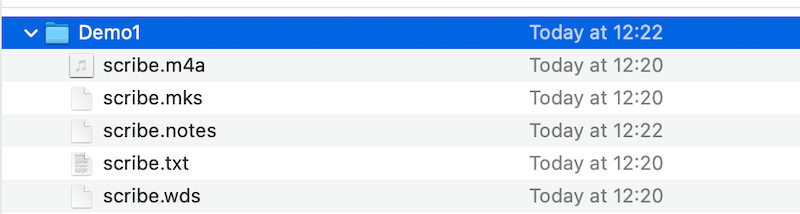
Viewing a Scribe Recording package in macOS Finder.
Use Duplicate (⌘ D) or the Share sheet for easy file distribution.
8. Keyboard Shortcuts Summary
| Action | Shortcut |
|---|---|
| Start/Stop Recording | ⌘ R |
| Page Marker | ⌘ ⌃ P |
| Colored Markers | ⌘ ⌃ 1-4 |
| Trigger Writing Tools | ⇧ ⌘ W |
| Select All Text | ⌘ A |
| Open Recording | ⌘ O |
| Save As | ⌘ ⇧ S |
9. Tips & Common Tasks
- Mute for Speed: You can minimize Scribe during transcription, but avoid muting system audio entirely if transcribing external media.
- Backup: Scribe folders are compatible with Time Machine and iCloud Drive.
10. Privacy
100% on-device processing using Apple's local speech recognition engine. Scribe does not collect usage data or send audio to the cloud.
11. Troubleshooting
Ensure Scribe has Microphone and Speech Recognition permissions in macOS System Settings.
12. Support
Email: support@sensory-at.com
Please include your macOS version and Scribe version (v1.0) when contacting support.