📐 Overview
SumIt is a browser-based math, physics and chemistry equation studio. It works fully offline as a Progressive Web App — every library and AI model is bundled locally, all data stays in your browser, no account required.
- Editor — type or paste LaTeX with autocomplete, formula library, and multi-line support
- Dictate — speak equations using your microphone
- Draw — handwrite equations, or upload / paste / drag-drop an image of one, and recognise with the bundled AI model
- Scientific — full scientific calculator with memory and DEG/RAD modes
- Graphing — plot up to 6 functions simultaneously (Cartesian, polar, parametric)
- Chemistry — render reactions and chemistry-specific formulas via mhchem
- History — review, reload, and export saved equations
☰ Navigation & Settings
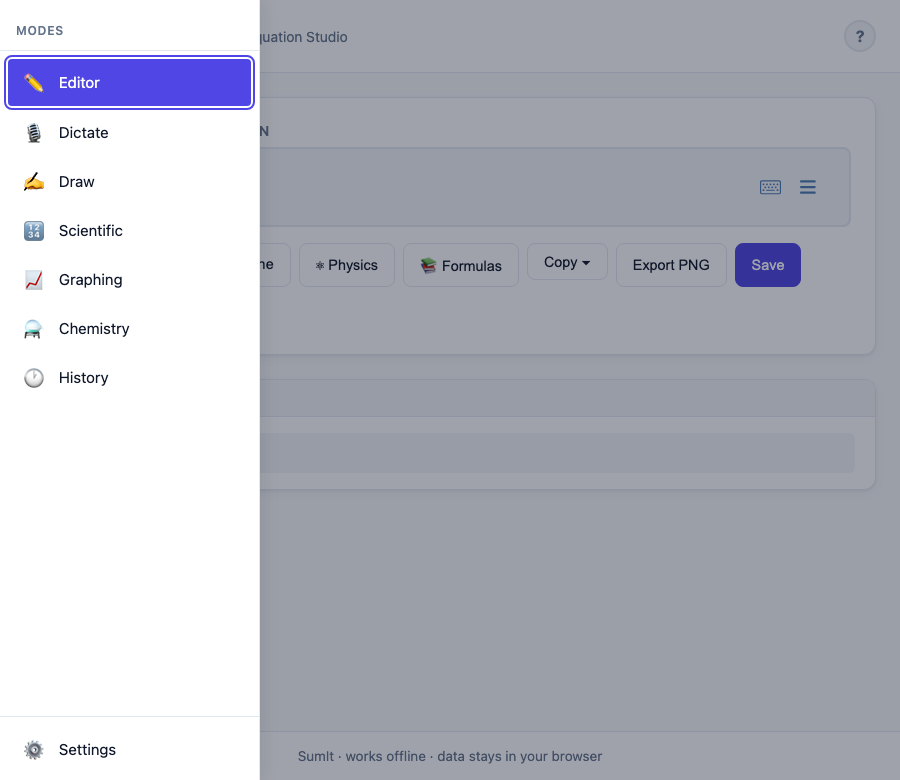
The ☰ button at the top-left opens a slide-out menu listing every mode. The current mode is highlighted; click any item to switch. Use ↑ / ↓ to move between items with the keyboard, Esc to close.
Settings
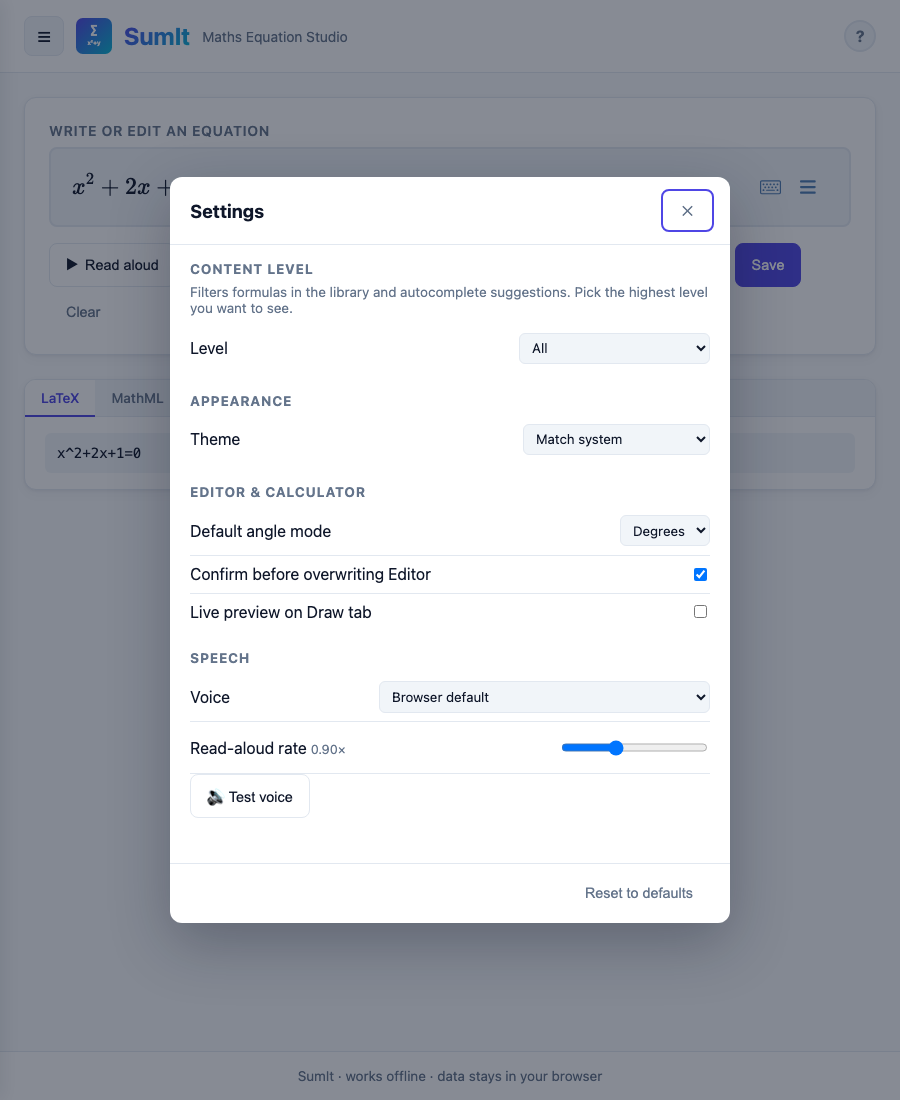
Open Settings from the bottom of the menu. All preferences are stored in your browser and persist across sessions.
| Setting | What it does |
|---|---|
| Level | Filters formulas in the library and autocomplete. Three groupings:
|
| Theme | Match system, plus 5 light themes (Light, Paper, Sepia, Solarized Light, Sky) and 5 dark themes (Dark, Solarized Dark, Dracula, Nord, Midnight). |
| Default angle mode | Calculator opens in DEG or RAD on next page load; live changes also retoggle the open calculator. |
| Confirm before overwriting | If on, "Send to Editor" prompts before replacing existing content; if off, replaces silently. Either way, Ctrl+Z in the editor restores the previous equation if you change your mind. |
| Voice | Picks which system voice Read-aloud uses. Local voices (no marker) always work. Network voices are marked 🌐 — SumIt silently probes each one in the background and tags it ✓ (confirmed working) or hides it if it doesn't speak from a third-party page. A voice tagged — no highlighting speaks correctly but can't drive the read-aloud highlight (see below). Click 🔊 Test voice to preview, or ↻ Retest network voices to wipe the cache and re-probe (useful if a voice was wrongly marked broken on a slow connection). |
| Read-aloud rate | Slider from 0.7× to 1.3× — applies to every Read-aloud button across the app. |
✏️ Editor
The editor uses a rich math field — you can type LaTeX directly or use the on-screen keyboard. The field itself shows the equation typeset live as you edit. Below, a single output card has tabs for the other useful representations: LaTeX, MathML, Spoken. Click any tab to switch view; the content updates live as you type.
Autocomplete
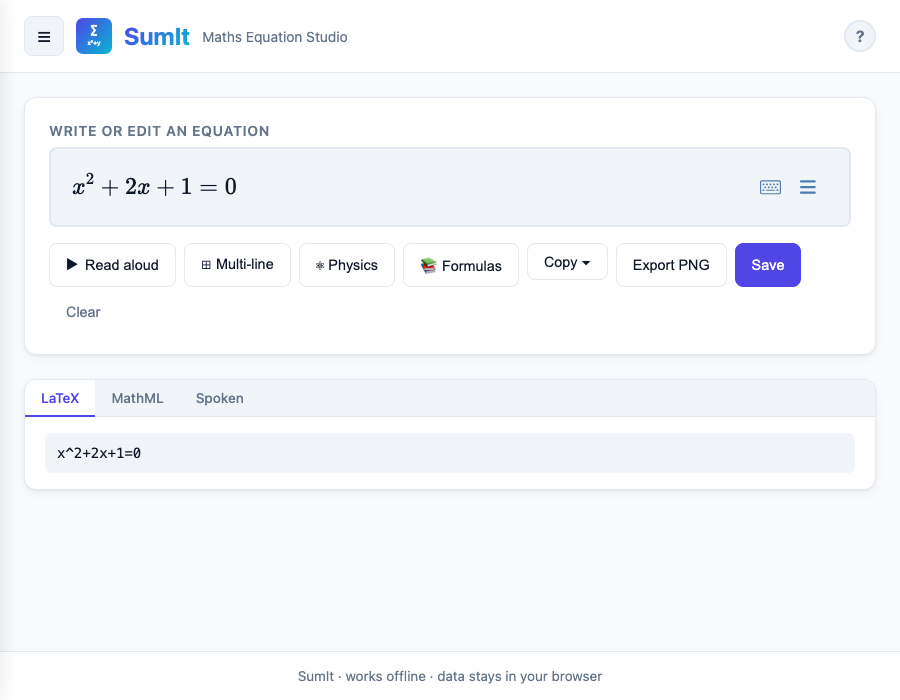
As you type a word (≥ 2 letters) the autocomplete dropdown shows matching Greek letters, operators, set symbols, and formula triggers. Examples:
- Type
alpha→ suggests\alpha(α) - Type
sqrt→ suggests\sqrt{} - Type
reals,integers,naturals,complex,rationals→ suggests\mathbb{R},\mathbb{Z},\mathbb{N},\mathbb{C},\mathbb{Q}(the blackboard-bold number sets ℝ, ℤ, ℕ, ℂ, ℚ) - Type
qform→ suggests the quadratic formula - Type
schrod(with the Symbols button on) → suggests Schrödinger equations
You don't have to know the short code. Formulas also match on their name and on related keywords, so typing quadratic finds the quadratic formula just as qform does, and binomial or geometric find theirs. Related keywords count too — factoring offers the difference-of-squares and sum/difference-of-cubes identities. Short-code matches are listed first, then name and keyword matches.
Power & postfix words — some predictions attach to whatever you've just typed, so write the base first, then the word:
- Type
xthensquared→x²(alsocubed→ x³,inverse→ x⁻¹,nth→ xⁿ) power/pow→ an empty exponent to fill;sub→ an empty subscriptprime→ x′,factorial→ x!,degrees→ x°,percent→ %
These match even when the base and word run together (e.g. xsquared still offers x²) — only the word is replaced, keeping your base.
Use ↑ / ↓ to navigate, Enter or Tab to accept, Esc to dismiss. Frequently-used suggestions float to the top of the list automatically.
Filling in the gaps
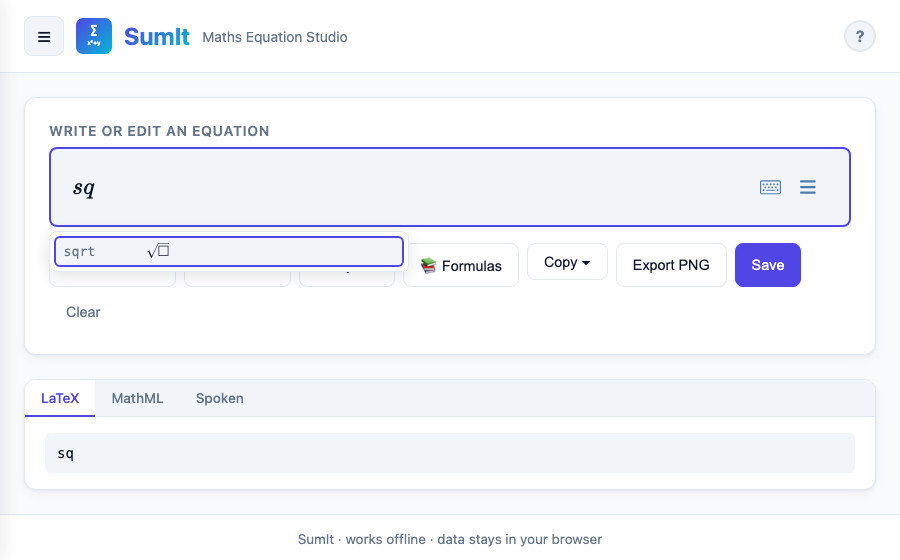
When a suggestion has slots to fill — \sqrt{}, \frac{}{}, an exponent — the empty slots appear as small grey boxes rather than as invisible gaps, and the cursor is placed in the first one ready for you to type. Press Tab to jump to the next box. This makes it obvious both that there is something still to fill in, and exactly where it goes.
Moving around the equation
Typing inside a fraction, root or exponent puts the cursor inside that structure, and it stays there — so x^2 followed by +1 would otherwise give you x²⁺¹ rather than x² + 1.
Press Esc to step out of the structure you're in and carry on at the level above. Press it again to step out of the next one. The arrow keys move within and between slots as usual, and Tab moves to the next empty box.
If the autocomplete dropdown is open, Esc dismisses that first — press it again to step out.
Buttons
| Button | Action |
|---|---|
| ▶ Read aloud | Speaks the equation in plain English and highlights each word in the rendered equation as it's read. See Read aloud below for details. |
| ⊞ Multi-line | Wraps the equation in an align environment — use ↵ New line or Shift+Enter to add aligned rows |
| Σ Symbols | Opens the symbol palette and adds physics formulas to the library/autocomplete. Palette tabs: Greek, Operators (general maths), Sets (ℝ ℤ ℂ ℕ ℚ and set-builder/quantifier symbols), Mechanics, E & M, Quantum, Thermo (physics-specific) |
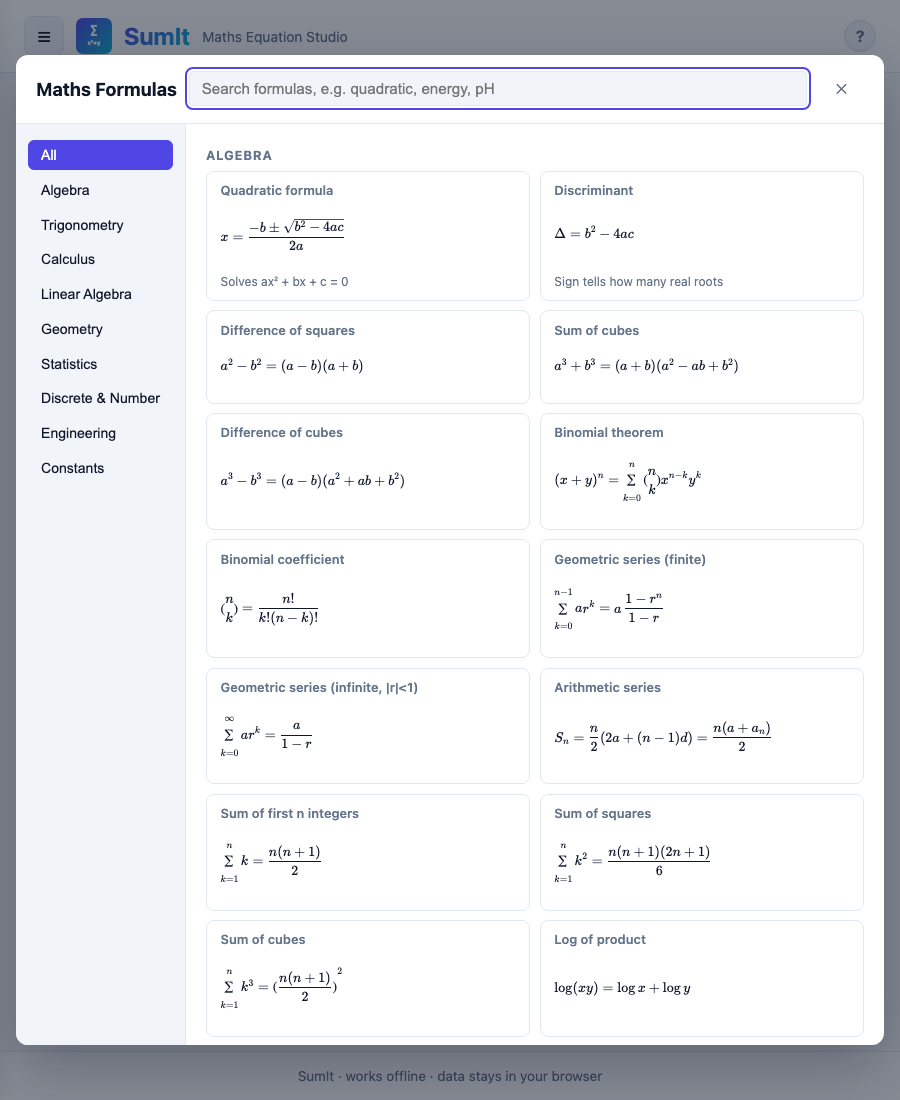
| 📚 Formulas | Opens the searchable formula library (300+ formulas, scoped by the Symbols toggle) |
| 📈 Graph it | Converts the current equation to a plottable function and shows it on the Graphing tab (strips a y=/f(x)= prefix; equations in both x and y, like x^2+y^2=9, are drawn as implicit curves; things that can't be graphed, like integrals or matrices, show a friendly message) |
| Copy ▾ | Opens a menu with: Copy LaTeX (raw source), Copy MathML (XML), Copy for Word (editable) (wrapped <math> document — paste into Word for a live, editable equation) |
| Export PNG ▾ | Download as PNG saves the equation as a typeset image; Copy as image copies it to the clipboard to paste into Google Docs, Slack, email, etc. |
| Save | Adds the current equation to History |
| Clear | Clears the editor |
Output views
The card below the editor has three tabs that mirror the current equation:
- LaTeX — the raw source you typed (or that MathLive emitted on your behalf).
- MathML — the equation as standards-compliant MathML, ready to paste into Word or any MathML-aware tool. The Copy for Word menu item wraps this in a Word-friendly document so paste keeps the equation editable.
- Spoken — the plain-English reading of the equation, exactly the text that Read aloud would speak. Useful for checking how a screen reader or TTS engine will narrate your formula.
Read aloud
The ▶ Read aloud button speaks the equation through your operating system's TTS voice and shows a red underline / outline on the rendered equation that tracks the word being spoken. Atoms (variables, operators, numbers) get an underline; surrounding structures (fractions, square roots, parens, sums) get an outline so you can see the whole construct the voice is currently inside.
The text the engine is sent is a careful rewriting of the LaTeX into spoken English. Some of the conventions:
- Number sets —
\mathbb{R},\mathbb{Z},\mathbb{C},\mathbb{N},\mathbb{Q},\mathbb{H},\mathbb{P}read as "the real numbers", "the integers", "the complex numbers", "the natural numbers", "the rationals", "the quaternions", "the primes".\mathbb{F},\mathbb{K}and other generic letters read as the bare letter name. - Greek —
\alphaas "alpha",\thetaas "theta", etc. Variant forms (\varepsilon,\varphi) read the same as their base letter. - Fractions, roots, sums — "the fraction X over Y end fraction", "the square root of … end square root", "the summation from i equals 1 to n of …".
- Hyperbolic functions —
\sinh,\cosh,\tanhread as "shine", "kosh", "tanch" — the conventional spoken forms among mathematicians. - Chemistry —
\ce{H2O}reads "H 2 O" (each element letter), reaction arrows as "yields" / "in equilibrium with", square brackets around a species as "the concentration of …". - Multi-line — each line of an
alignenvironment is read as its own equation with a clear pause between.
Why some voices don't highlight
The highlight follows the voice by listening for the word boundary events the speech engine reports as it speaks. Most voices installed on your machine report them. Many network voices (🌐) don't — they render the whole phrase as one piece of audio and say nothing about individual words. With one of those selected the equation is still read correctly, but the highlight lands on the first term and stays there.
SumIt works this out for itself. The silent calibration utterance notices when a voice reports no word boundaries, and from then on that voice is tagged — no highlighting in Settings → Voice. You can still choose it — some of the network voices sound markedly better — you just won't get the highlight with it.
On first run SumIt picks a starting voice for you rather than leaving it to the browser — left to itself a browser will often choose a network voice, and the highlight would silently not work out of the box. It prefers a voice installed on your machine, in your language (a Microsoft voice on Windows, for instance), because those report word boundaries and also work with no internet connection.
That choice is yours to change — it's saved as an ordinary setting, shown selected in Settings → Voice, and SumIt only ever does this once. If you switch to a different voice, or back to Browser default, that sticks; it won't be overridden on the next visit.
If you do select Browser default and your browser's own default can't report word boundaries, SumIt still falls back to a voice that can, and the dropdown says which one — so the label isn't quietly telling you something different from what you'll hear.
Highlight sync & the welcome utterance
The first time the page loads — and again whenever you change voice or speech rate in Settings — SumIt speaks "Welcome to Sum It" as a calibration utterance. This serves three purposes:
- It demonstrates the highlight in action so you can immediately see that the visual feedback is working.
- It measures the offset between the engine's word-boundary events and the actual audio playback. Some browsers fire boundary events ahead of the audio buffer; the calibration records the lag and applies it to every subsequent utterance so the highlight tracks the audio rather than running ahead of (or behind) it.
- Different voices have different timing characteristics, so the measurement is redone whenever you switch voice in Settings → Speech.
On the Windows desktop wrapper the SAPI speech bridge fires its progress events in lock-step with the audio, so the welcome utterance is skipped and highlights fire synchronously — no calibration needed.
📚 Formula Library
The library bundles 300+ named formulas across maths, physics, chemistry, engineering, and physical constants. Click 📚 Formulas in the relevant tab to open it.
- Editor (Symbols off) — algebra, trig, calculus, linear algebra, geometry, statistics, discrete maths, engineering, constants
- Editor (Symbols on) — adds mechanics, electromagnetism, thermodynamics, quantum, relativity, optics & waves
- Chemistry tab — chemistry reactions and formulas only
The visible set is also filtered by the Level setting: ≤ 16, 16 – 18, University, or All. Picking a level shows everything up to and including it.
Use the search box to filter by name, id, or keyword. Click any card to insert the formula at the cursor; close with Esc or the ✕ button. The same trigger ids power the autocomplete dropdown.
🎤 Speak
Click Start listening and speak your equation naturally. Examples:
- "x squared plus two x equals zero"
- "square root of nine over three"
- "the integral of x squared"
The recognised text is converted to LaTeX automatically. Click Send to Editor to transfer it. Requires a browser with Web Speech API support (Chrome or Edge recommended).
✍️ Draw
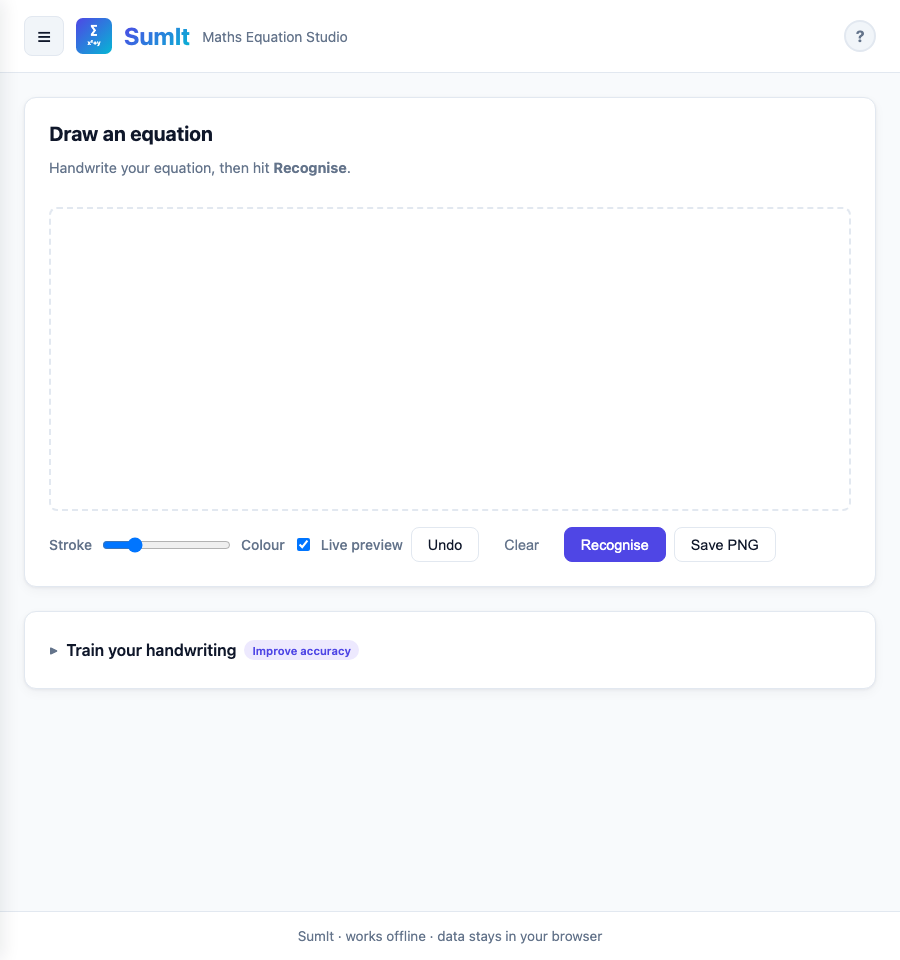
Handwrite an equation on the canvas, then click Recognise — or feed in an existing image with Upload Image, clipboard paste, or drag-and-drop. A bundled neural network (~117 MB) is loaded into memory the first time you recognise — subsequent recognitions are immediate. Nothing is sent to any server. If the model fails to load, handwriting recognition silently falls back to the bundled template-matcher.
Controls
| Control | Action |
|---|---|
| Stroke slider | Adjusts pen thickness |
| Colour picker | Changes ink colour |
| Undo | Removes the last stroke |
| Clear | Clears the canvas |
| Recognise | Loads the AI model on first use, then runs recognition. Long equations show a "may be cut off" warning if the decoder reaches its limit |
| 📷 Take Photo | Open a small modal with a live preview from your camera, point it at an equation, press Capture, then Use this photo — the frame is auto-cropped to the equation and fed straight into the same AI recogniser as Upload Image. The first time you use it, the browser (or the desktop app) asks for camera permission. Available on all devices; if there's no camera it says so and you can use Upload Image instead |
| Upload Image | Pick a PNG, JPEG, WebP, or GIF of an equation and run the AI recogniser against it. You can also paste an image with Ctrl + V while on the Draw tab, or drag-and-drop one onto the canvas — the dashed border highlights when you drag over it |
| Send to Editor | Transfers recognised LaTeX to the Editor (confirms before overwriting existing work; Ctrl+Z restores the previous equation if needed) |
Recognition result
The result card (visible in the Draw screenshot above) shows the rendered equation as the primary content. Directly below it, Other interpretations chips appear whenever the model has more than one plausible reading — click any to swap the rendered result. The LaTeX source panel is open by default so you can scan it for misreads before sending; the raw text can be hand-edited there if a single character is wrong. Use Send to Editor to transfer the (possibly corrected) equation, or Clear & retry to discard everything.
Recognise from an image
Already have an equation as an image — a screenshot, a scan, or a photo? Four ways to feed it in:
- 📷 Take Photo — uses your camera (any device). Click the button, allow camera access on first use, line up the equation in the preview, press Capture, then Use this photo — it's auto-cropped to the equation before recognition. (Use Retake if the framing was off.) If there's no camera, use Upload / paste / drag-and-drop instead
- Upload Image — opens a file picker for PNG, JPEG, WebP, or GIF
- Paste — copy any image to the clipboard, then press Ctrl + V with the Draw tab visible
- Drag and drop — drag a file from your file manager onto the canvas; the dashed border highlights to show it accepts the drop
Selecting the equation
However the image arrives, a Select the equation window opens first. Drag a box around the one equation you want, then press Recognise selection. If the picture is already just the equation on its own, press Use whole image instead. Cancel (or Esc) backs out without recognising anything.
This step matters because the AI reads one equation at a time. On a textbook page or a revision poster — a title, a paragraph of prose, several worked examples — it has no way to tell which equation you meant, and the automatic cropping can't help either, because it trims to all the non-white content, which on a busy page is the whole page. Drawing the box is what tells it.
Whatever you select is then auto-cropped tightly to its non-white content — only ~4% padding around the equation, with a one-neighbour noise filter so JPEG specks or dust on a scan don't inflate the bounding box and shrink the equation inside the model's 384×384 input. It's then handed to the same AI model the handwriting flow uses. The result appears in the same recognition card with the other-interpretations chips, the LaTeX source panel, and Send to Editor. Nothing leaves your machine.
Best results come from a single equation on a roughly white background — which is exactly what the selection box is for. Coloured pen on coloured paper is harder than dark ink on light paper, and a phone photo works best held square to the page.
🔢 Scientific Calculator
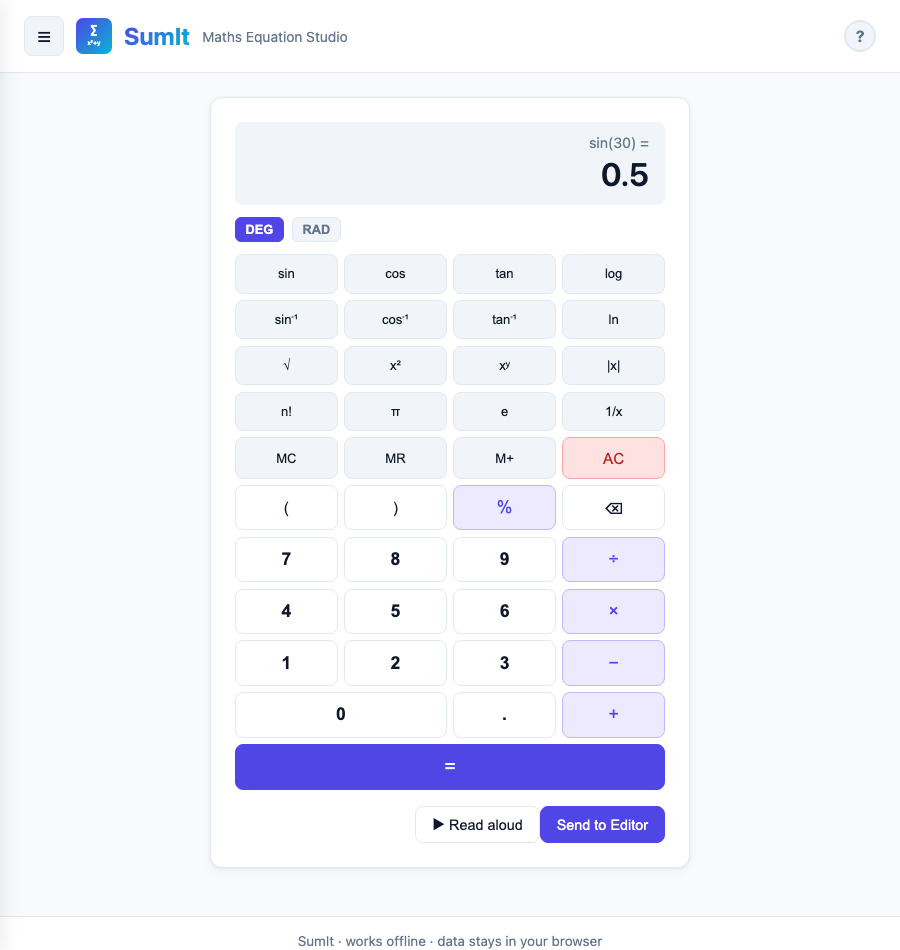
A full scientific calculator powered by math.js. Switch between degree and radian modes using the DEG / RAD toggle.
Functions
- Trigonometry:
sin,cos,tanand their inverses (correct in both DEG and RAD) - Logarithms:
log(base 10),ln(natural) - Powers:
x²,xʸ,1/x - Other:
√,|x|,n!,π,e - Memory: MC clear, MR recall, M+ add to memory (true accumulator)
- Smart wrapping: typing
-4then√gives√(-4);cos(30)thensingivessin(cos(30))
Keyboard shortcuts
While the Scientific tab is active, you can type numbers and operators directly. Enter evaluates, Backspace deletes, Esc clears.
Use Send to Editor to transfer the result to the equation editor.
📈 Graphing Calculator
Plot up to 6 functions simultaneously. Each function is colour-coded. Three modes:
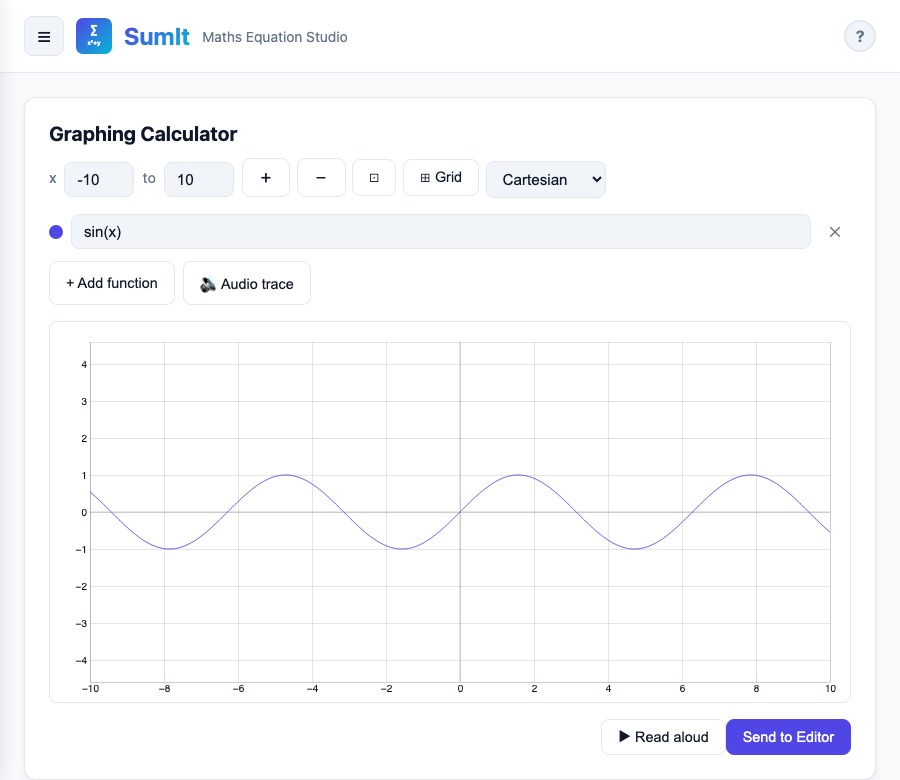
- Cartesian —
sin(x),x^2 - 3,sqrt(x) - Polar —
2 + 2*sin(theta)orcos(3*theta)(boththetaand\thetawork) - Parametric —
cos(t) ; sin(t)(separate x and y with;;tranges over the visible x-domain)
Function fields start empty — nothing is plotted until you type something, and switching modes never overwrites what you've entered.
Implicit curves
Cartesian mode isn't limited to y = something. If an expression mentions both x and y it is plotted as an implicit curve — the set of points where it equals zero — so circles, ellipses, cardioids and other shapes that aren't functions of x all work:
x^2 + y^2 - 9→ a circle of radius 3x^2/4 + y^2 - 1→ an ellipse
📈 Graph it in the Editor understands these too: an equation like x^2 + y^2 = 9 is handed over as (left side) − (right side), which is exactly the form implicit plotting expects. Previously anything mentioning y failed with "Undefined symbol y".
Letters with no value
Expressions often carry a symbolic constant — the a in the cardioid (x^2 + y^2 - a x)^2 = a^2 (x^2 + y^2), for instance. Nothing can be drawn until that letter has a number, so SumIt defaults any such free parameter to 1 and plots the result, telling you underneath the graph which letters it filled in:
a had no value — plotted with it set to 1. Put a number in the expression to use a different value.
That message is grey, not red — it's information, not an error. To use a different value, type the number into the expression yourself (2 in place of each a). Letters that do have a fixed meaning — e, pi, i, tau, phi — keep it and are never substituted.
Adjacent letters are read as a product the way they are in written maths, so ax means a×x, not a variable named "ax".
Controls
- Edit any expression field — the graph updates as you type
- Adjust the x range inputs to change the horizontal domain (input or change events)
- Click + Add function to plot an additional curve (max 6)
- Click ✕ beside a function to remove it
- 🔊 Audio trace sonifies the function — click again to stop
- ▶ Read aloud describes the plotted functions
- Export PNG ▾ — Download as PNG saves the current graph as an image, or Copy as image to paste it into a document
- Send to Editor transfers the focused function to the equation editor (confirms before overwriting; Ctrl+Z restores the previous equation if needed)
⚗️ Chemistry
The Chemistry tab renders chemical formulas and reactions using the mhchem KaTeX extension. The input box accepts two flavours:
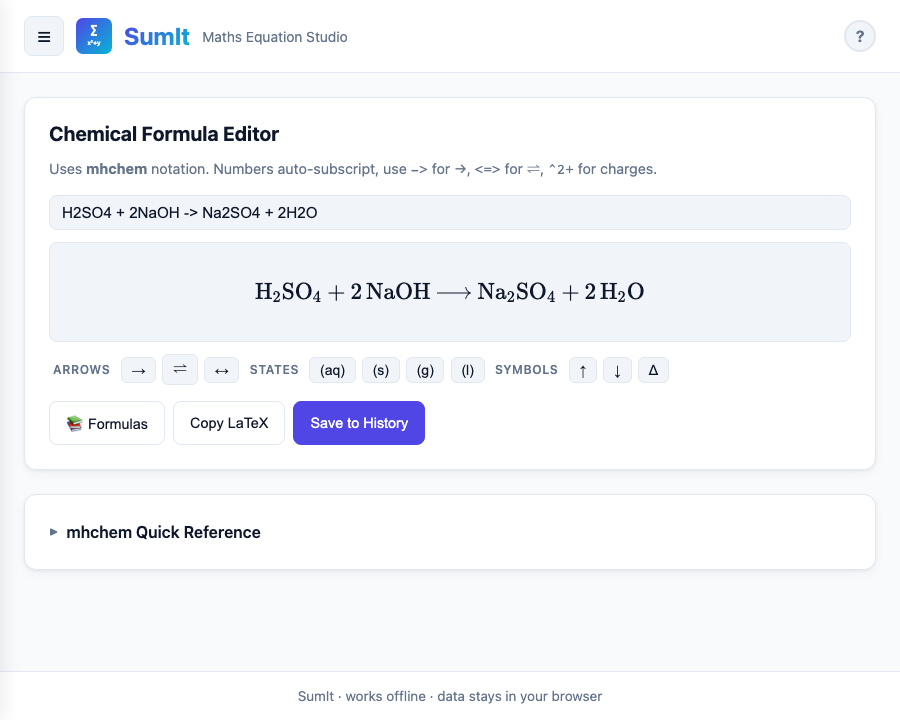
- Reactions — bare mhchem syntax, e.g.
H2SO4 + 2NaOH -> Na2SO4 + 2H2O(auto-wrapped in\ce{...}) - Pure LaTeX — formulas like
\text{pH} = -\log_{10}[H^+]render as-is (no wrapping)
Periodic table
Click 🧪 Periodic Table to open an interactive periodic table below the input. Every element is colour-coded by category (alkali metals, halogens, noble gases, and so on — see the legend). Click any element to insert its symbol at the cursor, so you can build a formula like NaCl by clicking Na then Cl. Hover (or tap) an element to see its name, atomic number and relative atomic mass in the bar above.
mhchem syntax
| You type | Meaning |
|---|---|
H2O | Subscript numbers (H₂O) |
Ca^2+ | Charge superscript (Ca²⁺) |
^{14}C | Isotope mass number (¹⁴C) |
-> | Reaction arrow (→) |
<=> | Equilibrium arrow (⇌) |
v / ^ | Precipitate ↓ / gas ↑ |
Click 📚 Formulas to browse 20+ chemistry formulas, or use the chip bar for arrows, states, and special symbols.
▶ Read aloud speaks the current formula or reaction in plain English — element symbols are read letter-by-letter (e.g. NaCl → "N A C L"), + reads as "plus", -> as "yields", <=> as "in equilibrium with", subscripts and charges are voiced, and [X] reads as "the concentration of X". Uses the same voice you've selected for Read aloud on the Editor tab.
🕐 History
Every equation you save in the Editor or Chemistry tab appears here (capped at 500 entries; older saves are auto-trimmed if storage runs short). Click Load to restore an equation to the Editor (confirms before overwriting). Click Export all (JSON) to download your full history. Stored in your browser's localStorage — never transmitted.
♿ Accessibility
SumIt is built for keyboard, screen-reader, and reduced-motion users. Every command is reachable without a mouse.
Keyboard navigation
- Tab / Shift+Tab moves between controls
- Enter or Space activates buttons; Esc closes any modal, drawer, or dropdown
- ↑ / ↓ / ← / → / Home / End move between adjacent tabs and menu items (output card, formula categories, symbol palette, drawer items, Copy ▾)
- Modals trap focus inside while open and restore focus to the trigger when closed
- A Skip to main content link appears as the first focus stop on every page
Global shortcuts
| Shortcut | Action |
|---|---|
| ? | Open this help in a popup window (only when not typing); the ♿ button just to the left opens the focused Accessibility page in the same way |
| Cmd / Ctrl + K | Toggle the menu drawer |
| Cmd / Ctrl + S | Save the current equation (Editor only) |
| Cmd / Ctrl + Shift + C | Toggle the Quick-calc popup — a floating panel for side calculations without leaving the editor (Enter to evaluate, Esc to close) |
Screen-reader support
- Toast messages and the Recognition card are live regions — screen readers announce updates automatically
- The math-field is labelled and exposed as a textbox; equation MathML is shipped to assistive tech via the math-field's accessible name
- Page title updates as you switch modes ("Editor — SumIt", "Graphing — SumIt", …)
Visual accommodations
- Reduced motion — when your OS has "reduce motion" enabled, all transitions and the drawer slide are disabled
- Themes — every bundled theme passes WCAG AA contrast for text and muted text against its surfaces
- Touch targets — all controls hit a minimum 44 × 44 px on touch devices
- Focus rings — every interactive element shows a visible focus indicator when reached by keyboard (suppressed for mouse users via
:focus-visible)
⚖️ Credits & Licences
SumIt is built on open-source libraries, all with licences compatible with commercial use. Full attributions and licence text live in LICENSES.md.